

Voicemail might seem like a relic of the past, but it’s still lurking on your iPhone, waiting to be discovered. If you’ve ever found yourself staring at your voicemail icon like it’s a mysterious artifact, you’re not alone. Many users are baffled by how to access those hidden messages, which could hold the key to missed opportunities or hilarious anecdotes from friends.
Understanding Voicemail on iPhone
Voicemail remains a vital feature on iPhones. It captures important messages users might miss through calls.
What Is Voicemail?
Voicemail is a system that allows callers to leave recorded messages. These messages become accessible when users are unavailable. Users can retrieve personal greetings and audio recordings at their convenience. Each message might contain crucial information, such as updates or reminders from loved ones.
How Voicemail Works on iPhone
Voicemail operates through the iPhone’s built-in Phone app. Users can access messages by tapping the Voicemail tab. Messages are visually listed for easy navigation. Upon receiving a message, the phone notifies users, ensuring they never miss important content. Additionally, visuals offer options to save, delete, or share messages directly from the app.
Accessing Your Voicemail
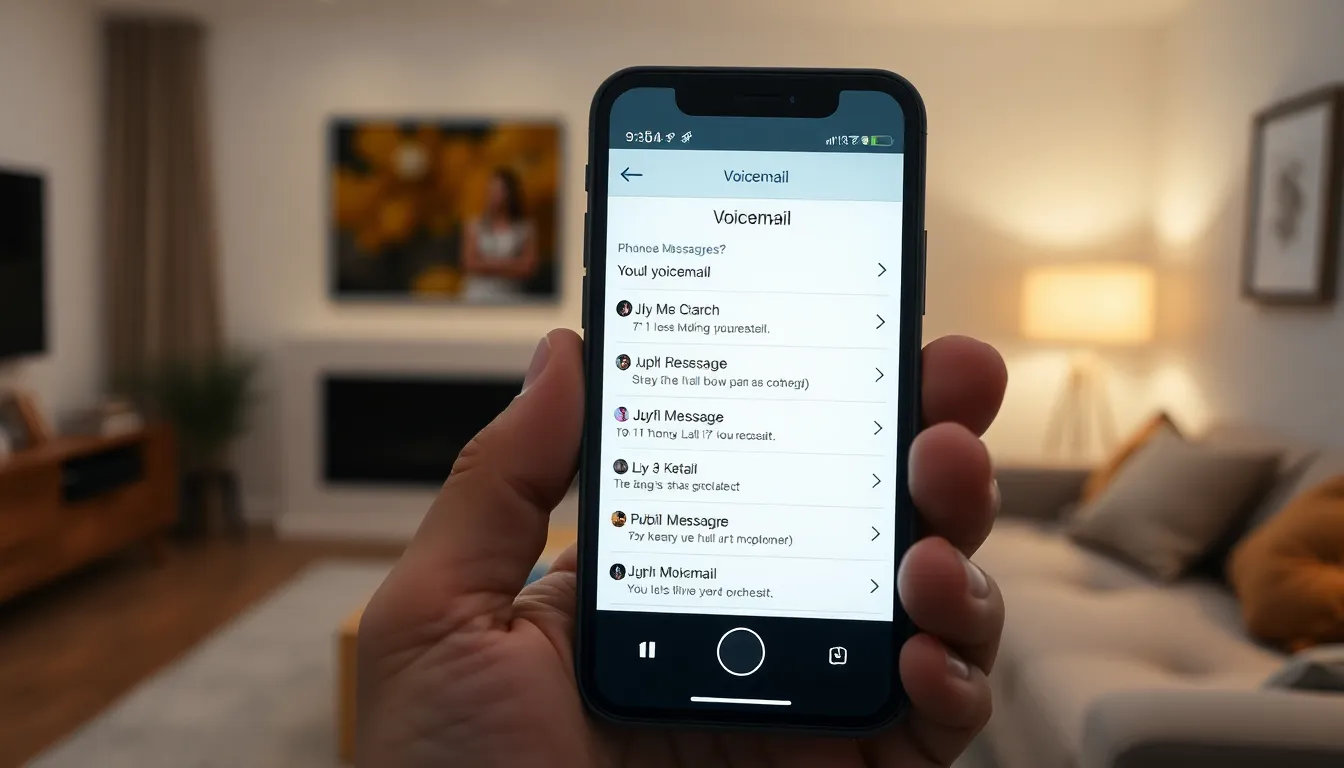
Accessing voicemail on an iPhone is straightforward. Users can retrieve their messages easily through familiar interfaces.
Using the Phone App
Open the Phone app to find your voicemail. Tap the “Voicemail” tab located at the bottom right. Listeners see a display of all voicemails, with information about each one. Each entry shows the caller’s name or number and the time of the message. Tapping a voicemail plays it back, while options appear for deleting or saving messages. Users can also share voicemails via email or text. Notifications for new messages ensure users stay updated on important communications.
Using Visual Voicemail
Visual Voicemail makes accessing messages even simpler. Messages appear in a list format, allowing users to scroll through easily. Each message includes a transcription feature that displays the caller’s message in text, making it easy to review without listening. Users can quickly tap on messages to listen or delete them directly. Visual Voicemail supports managing multiple messages efficiently, helping users prioritize what to listen to first. This feature is particularly beneficial for those who receive many calls throughout the day.
Reading Voicemail Messages
Reading voicemail messages on an iPhone is straightforward. Users can either listen to voicemails or view transcriptions for quick reference.
Listening to Voicemail
Accessing voicemail typically starts from the Phone app. Tapping the “Voicemail” tab reveals a list of messages, showing the caller’s name or number. Each voicemail has a play button, which activates playback. Users can listen to messages in the order received or select specific ones. Upon hearing a message, options appear to delete, save, or share it. For convenience, users can adjust the playback speed in certain situations, allowing them to catch important information swiftly.
Transcribing Voicemail
The Visual Voicemail feature enhances voicemail management through transcriptions. This functionality automatically converts voice messages into text. Users can read transcriptions without needing to listen, ideal for time-sensitive information. The transcription shows up alongside the audio message, making it easy to cross-reference details. Accuracy in transcriptions varies, so reviewing audio may still be necessary for clarity. Users can quickly scan for essential content, enabling efficient communication and response.
Managing Your Voicemail
Managing voicemail effectively helps users keep track of important messages. Understanding how to delete and save voicemails ensures efficient communication.
Deleting Unwanted Messages
Deleting unwanted messages streamlines the voicemail experience. To remove a voicemail, users must tap the “Voicemail” tab in the Phone app. Selecting the message leads to several options. Hitting the “Delete” button removes it from the list and frees up storage space. Unwanted messages may clutter the inbox, so regular maintenance is essential. Users can also delete multiple messages at once by tapping “Edit,” selecting messages, and pressing “Delete.” Doing so saves time and reduces confusion when navigating voicemails.
Saving Important Voicemails
Saving important voicemails preserves crucial information. Users can do this by selecting the desired message in the Phone app. Tapping the “Share” option allows them to save it to various locations, such as Notes or Files. Additionally, holding onto significant messages can serve as reminders for essential events or tasks. Voicemails containing vital updates may require quick access later, so ensuring they remain stored is beneficial. Users should regularly review saved messages to maintain organization and relevance.
Troubleshooting Common Issues
Users might encounter a few issues when accessing voicemail on their iPhones. Addressing these problems can enhance the overall voicemail experience.
Voicemail Not Showing Up
Voicemail might not appear for several reasons. An intermittent network connection can prevent voicemail retrieval. Users should ensure they have a strong cellular signal or Wi-Fi connection. Restarting the iPhone often helps refresh the network connection. If the problem persists, checking for carrier settings updates is advisable. An outdated software version could also hinder voicemail access; updating to the latest version may resolve this issue. For some, resetting network settings can refresh connections and help restore voicemail functionality.
Problems with Transcription
Transcription accuracy can vary from message to message. Environmental factors, such as background noise or poor call quality, often affect transcription clarity. Users should consider listening to the voicemail alongside reading the transcription for confirmation. If transcriptions appear garbled or incomplete, accessing the settings for Visual Voicemail may help. Turning the feature off and on again sometimes resolves glitches. Additionally, regular updates to the iPhone ensure transcription features function properly. Overall, ensuring a clear recording leads to better transcription outcomes.
Voicemail on iPhones remains a valuable tool for managing important communications. By utilizing the Phone app and its Visual Voicemail feature, users can efficiently access and handle their messages. The ability to read transcriptions alongside listening to recordings streamlines the process, making it easier to stay updated on missed calls.
Regularly managing voicemail ensures that crucial messages aren’t lost in a cluttered inbox. Deleting unwanted messages and saving significant ones helps maintain organization and accessibility. With a few simple steps, users can troubleshoot common issues, ensuring a smooth voicemail experience. Embracing these features can enhance communication and keep users connected to what matters most.